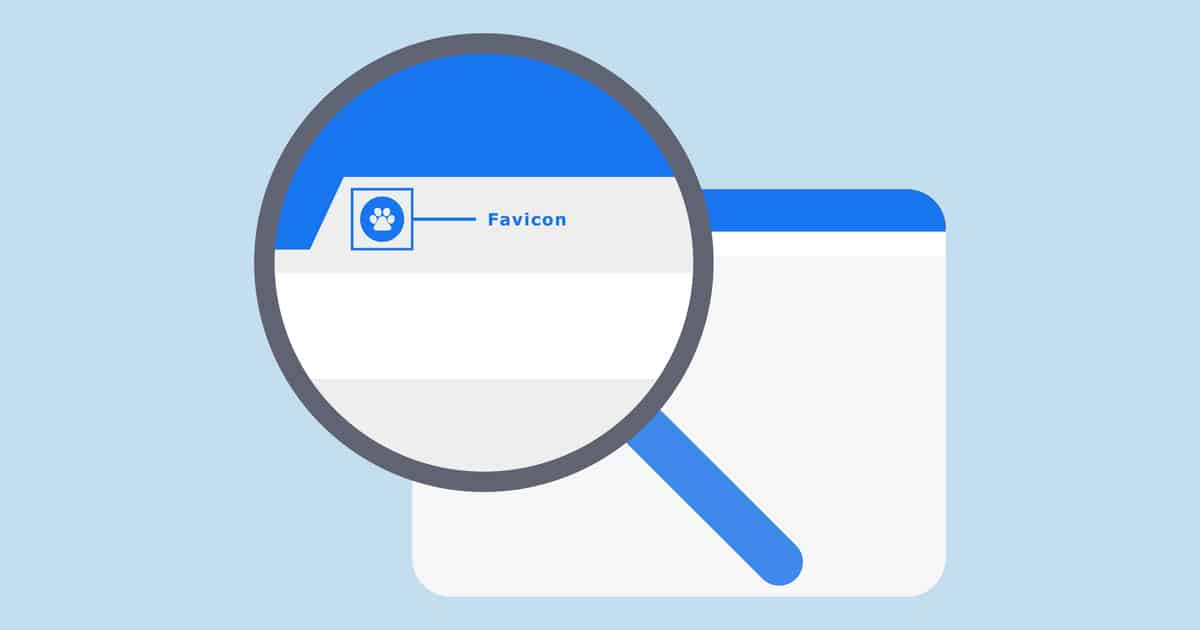
Every website needs a favicon — that tiny icon you see in browser tabs, bookmarks, and search results. It’s a small graphic, but it carries enormous impact. Favicons make your brand recognizable, help users find your tab quickly, and elevate your site’s professionalism instantly. Yet for many beginners, creating one feels confusing and technical. What format should you use? What size does it need to be? Do you have to download expensive software?
This is where TheToolDirectory.com’s free online Favicon Generator steps in. Built to be simple, fast, and fully browser-based, this tool allows anyone to upload an image and automatically generate all essential favicon sizes in seconds — no design skills, no Photoshop, no installation.
Whether you’re launching a website, rebranding an online business, updating blog assets across your network, or simply need a clean favicon for a personal project, this free tool makes the process smooth, intuitive, and refreshingly easy.
Favicon Generator
Upload an image to generate favicons in multiple sizes.
What Is a Favicon Generator?
A Favicon Generator is an online tool that converts any uploaded image into a full set of favicon PNGs in multiple sizes — including 16px, 32px, 64px, 128px, 256px, and more. These images are used across browsers, operating systems, and devices to display your website’s icon clearly and crisply.
Favicons are small, but they appear everywhere:
- Browser tabs
- Browsing history
- Mobile shortcuts
- Bookmarks
- Search results previews
- App-like homescreen icons
- Social link previews (depending on platform)
This means your favicon is a key part of your brand identity — and generating it properly ensures your site looks polished on every screen.
TheToolDirectory.com’s Favicon Generator simplifies the entire process by handling all resizing, formatting, and packaging in one click. Instead of manually resizing images or running complicated scripts, you simply upload your logo and download a complete ZIP package ready for your website.
Why You Need a Favicon for Your Website
Many website owners underestimate the importance of favicons until they see a blank icon appear on their browser tabs. That tiny grey default icon doesn’t just look unprofessional — it makes your website harder to recognize among multiple open tabs.
A favicon:
Enhances brand recognition
People remember visuals faster than text. A bold, clean favicon helps visitors immediately identify your brand.
Creates a polished, trustworthy impression
Small design details signal that a website is well-maintained and reliable — something Google also values.
Improves user experience
When someone has 20 tabs open, your favicon helps them return to your site quickly.
Strengthens bookmarking and mobile presence
Modern devices use your favicon for app-like shortcuts, bookmarks, and “Add to Homescreen” icons.
Helps SEO indirectly
While not a direct ranking factor, a favicon improves brand search signals, click-through rates, and user trust — all beneficial for SEO.
Whether you’re running a blog, business, portfolio, or e-commerce store, having a sharp, correctly sized favicon is simply essential.
How to Use the Favicon Generator (Step-by-Step)
Using the Favicon Generator on TheToolDirectory.com is intentionally simple. Everything runs in your browser, and no data is ever sent to a server — making the tool safe, private, and extremely fast.
Step 1: Upload Your Image
Click the upload area and choose any image file (PNG, JPG, SVG, or WebP). For best results, use a square, high-resolution image — ideally your logo or a recognizable symbol.
Step 2: Preview Your Icon
The tool automatically shows a preview so you can ensure your logo fits nicely inside a square frame. If edges are cut off, simply adjust your image and re-upload.
Step 3: Generate Your Favicons
Click Generate Favicons, and the tool will instantly create multiple PNG files in all recommended sizes:
- 16×16 (classic browser tab)
- 32×32
- 48×48
- 64×64
- 128×128
- 256×256
It also automatically generates a manifest.json and browserconfig.xml, which many modern sites and Windows devices use for branding.
Step 4: Download the ZIP File
Everything — all icons + configuration files — is packed neatly into a ZIP folder.
Save it to your website’s root directory for easy access later.
Step 5: Add the Favicon to Your Website
After unzipping, upload the files to your website’s directory and add the provided icon references to your <head> tag:
<link rel="icon" href="/favicon-32x32.png">
<link rel="apple-touch-icon" href="/favicon-128x128.png">
<link rel="manifest" href="/manifest.json">
Within minutes, your site gets a clean, professional favicon visible across all browsers and devices.
Key Features of the Favicon Generator
This tool is designed to be lightweight but powerful — perfect for beginners, designers, web developers, or digital entrepreneurs managing multiple sites.
Instant image resizing
Generates multiple favicon sizes without any software.
Clean, high-quality PNG output
Your favicons remain crisp on retina and high-resolution screens.
Fully private (no uploading to server)
Everything stays in your browser for maximum privacy.
Auto-generated configuration files
Includes manifest.json and browserconfig.xml for modern site setups.
Simple drag-and-drop interface
Beginner-friendly and fast.
Works with logos, illustrations, or photos
As long as it’s square or close to square, the tool handles the rest
Tips for Designing an Effective Favicon
Because favicons are tiny, details matter. Here are a few simple guidelines:
Use a simple, bold symbol
Thin lines and detailed artwork won’t be visible at 16×16.
Choose high contrast colors
A strong foreground and background help your icon stand out on light and dark tabs.
Avoid long text
Initials work — full words don’t.
Export a transparent PNG for best results
This allows your icon to adapt to different browser themes.
Even a small adjustment can dramatically improve how polished your site looks.
Frequently Asked Questions about using a Favicon Generator
1. What file types does the Favicon Generator accept?
PNG, JPG, WebP, and SVG files are supported.
2. What is the recommended favicon size?
Most browsers use 16×16, but generating multiple sizes ensures compatibility across devices.
3. Do I need a .ico file?
Modern browsers prefer PNGs, but an ICO generator will be added soon.
4. Why doesn’t my new favicon appear immediately?
Browsers cache favicons heavily. Clear cache or open in an incognito window.
5. Is the tool free to use?
Yes — completely free and unlimited.
Final Thoughts
A favicon may seem like a tiny detail, but it plays an outsized role in shaping your brand’s digital identity. TheToolDirectory.com’s Favicon Generator makes it unbelievably easy to create high-quality icons without technical skills, without design tools, and without extra downloads.
Whether you’re building a new site, refreshing your branding, or managing a portfolio of blogs, this tool lets you generate professional favicons in seconds — and gives your site that clean, polished finishing touch.
Leave a Reply